Summary
Missing PDF elements usually relate to layer settings. This guide explains the fix.
Layer Settings and PDF Output Issues in SOLIDWORKS Electrical
At some point when using SOLIDWORKS Electrical, you may have experienced an issue where not everything in your schematic showed up in your print. This could be as simple as a missing wire mark, or as dramatic as every symbol in a schematic not showing up. In the example below, we will look at a missing origin arrow due to layers in SOLIDWORKS Electrical.
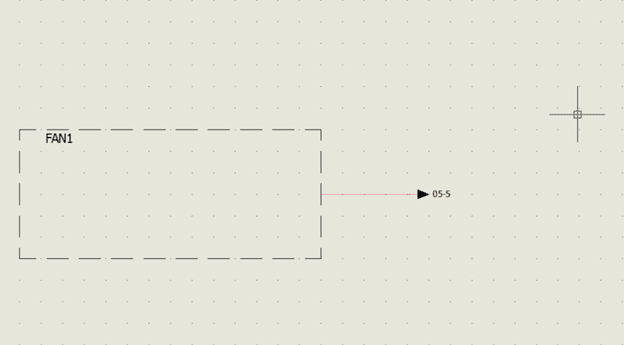
layers in SOLIDWORKS Electrical
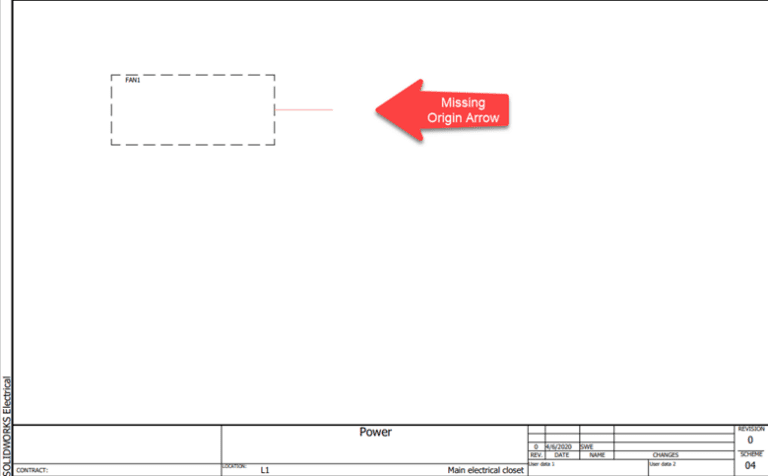
layers in SOLIDWORKS Electrical Edit
Investigating Missing Elements in PDF Export
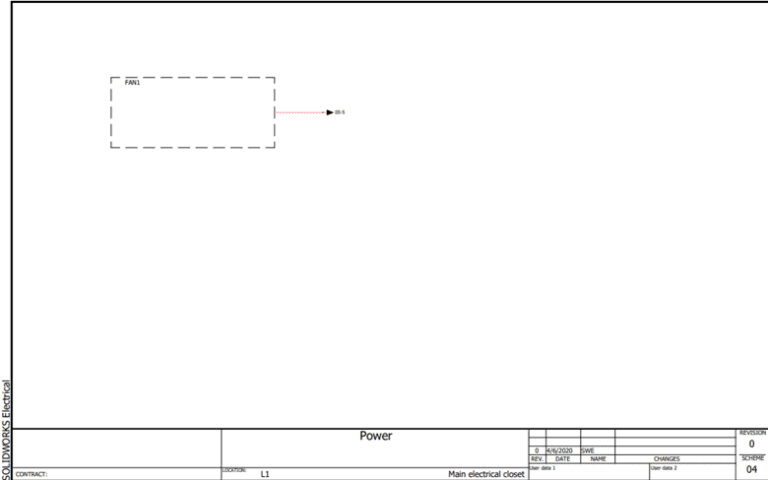
As you can see, the origin arrow is completely missing when performing a PDF export. Now it is time for some investigating. More often than not, the culprit in these cases of items missing within exported or printed PDFs is the layers in SOLIDWORKS Electrical. To check and see what layer an element is a part of, we can simply click on said element, and look at the properties.

SOLIDWORKS Electrical Properties
Layer Assignment and Management
Notice that the origin arrow and its mark are on the layer “Print Test.” This is not only the area where the layer can be identified, but also where the element can be reassigned to a different layer, which may be particularly handy in this situation. Let’s take a closer look at the “Print Test” layer within the Layer Manager.
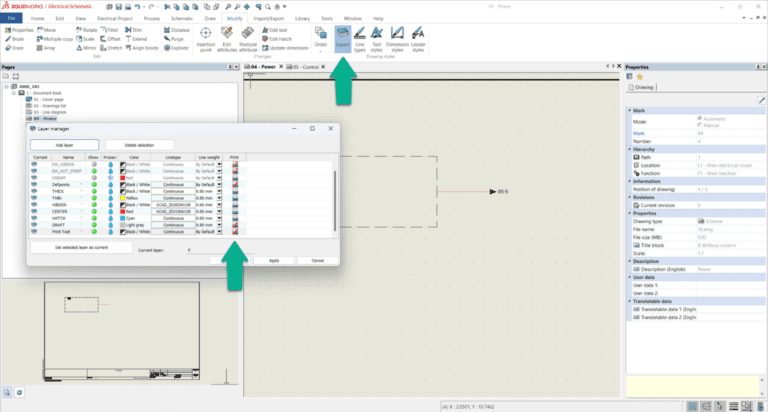
Electrical Layer Manager
Editing Print Settings
As expected, the layer “Print Test” is not set to print. This can be identified by the red line shown over the printer icon. To change this, simply click on the print icon.
Electrical Print Test
Result and Important Notes
Now that the assigned layer has been made “printable,” the PDF looks the same as the schematic, including the origin arrow that was originally missing. It is worth noting that another solution would be to reassign the origin arrow to a different, already visible layer. This demonstrates the importance of layers when printing in SOLIDWORKS Electrical.