Summary
Create professional electrical schematics and wiring diagrams using DraftSight. Learn symbols, templates, and ECAD integration.
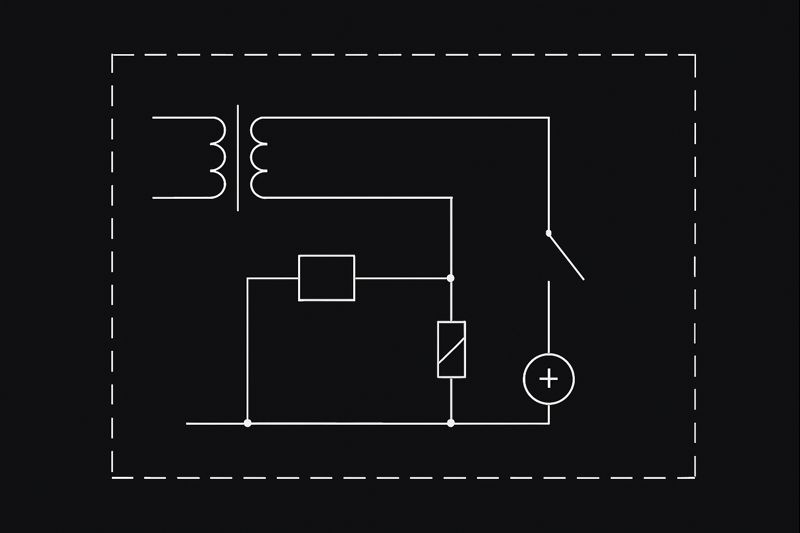
DraftSight is a general-purpose CAD tool which can be useful for any industry or discipline, including electrical drafting and design. You can use it to draw 2D schematics, wiring diagrams, pinouts, cable harnesses, electrical layouts for buildings, etc. If you have DraftSight Premium or Enterprise Plus, you could also do some 3D modeling to make sure that all of your your components will fit inside a particular enclosure. Making electrical drawings in DraftSight is not much different than making drawings of any other type. But there are a few special considerations to keep in mind.
 draw 2D schematic
Electrical Symbol Libraries
You will need a library of electrical symbols in .DWG format you can insert as blocks. I long ago created my own, as I’m a bit of a perfectionist and wasn’t happy with the legacy library I was provided with. You may also already have one, but if not, you don’t have to spend the time to create electrical symbols from scratch. Dassault Systemes has provided two downloadable libraries, one for ANSI symbols and one for IEC symbols.
Template Files
Electrical drawings typically use some specialized layers to make sure you properly group similar elements of the drawing. For example, in a building layout you may want one layer for the location and wiring of lights and another for electrical outlets. In a schematic you may want different layers for each gauge of wire, one for wire tags, one for symbols, another for connectors, and so on. You’ll likely want to have an electrical template file (.DWT) prepared with the layers, dimension and text styles you need set up in advance. You can find the path for drawing template files by going to Options > File Locations > Drawing Support > Drawing Template File Location.
If you want to use nothing but custom templates, it would be a good idea to create a folder in a path outside of DraftSight’s default installation locations. That way future reinstallations of DraftSight will not accidentally eliminate or misplace your custom files. You can then replace the default Drawing Template File Location with your custom path.
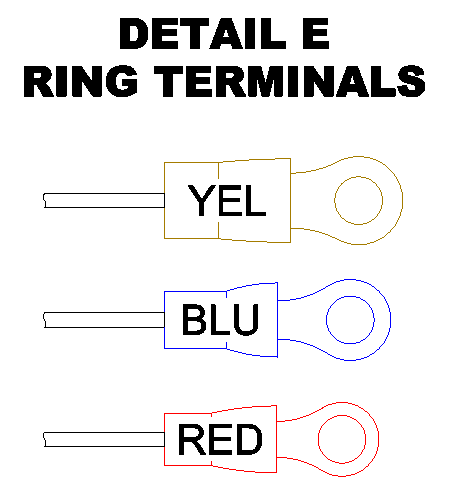 Detail e ring terminals
Importing Settings with Blocks
An alternative to using a custom template file is to have your layers, dimension, and text styles set up in a .DWG file you can insert into other drawings as a block. As soon as a .DWG is inserted into another all of the entities, layers, and styles contained in its drawing database are duplicated in the new file. You can even cancel the INSERT command before it’s complete, and the database will still be copied. This is a quick and easy shortcut for copying settings.
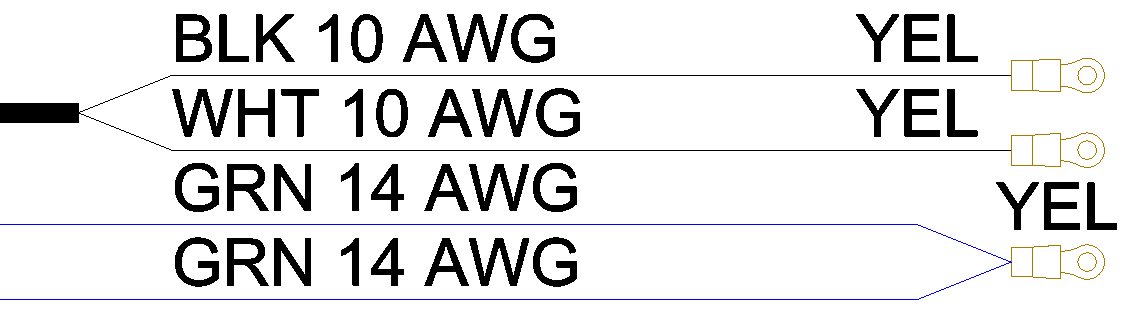
Importing Settings with Blocks
SOLIDWORKS Electrical for DraftSight
It is important to remember DraftSight is a general-purpose CAD application, not a specialized Electrical CAD, or ECAD, application. Your schematic may designate a blue line as a white 14 AWG wire, but as far as DraftSight is concerned a line is just a line. There is no built-in electrical intelligence as with ECAD products, such as SOLIDWORKS Electrical Schematic. That is where the SOLIDWORKS Electrical for DraftSight add-in comes into play.
Electrical Engineers, Designers, Technicians, and Drafters can enable communication between SOLIDWORKS Electrical and DraftSight. Once the add-in is enabled, any drawing sheet in a SOLIDWORKS Electrical project can be opened and edited in DraftSight, with no loss of ECAD intelligence! Even members of the team who are not SOLIDWORKS Electrical users can still contribute to electrical projects through DraftSight in the following areas:
- Electrical Reports
- Title Blocks
- Symbols
- Components
- Terminal Strips
- Wiring Order
- Markups
You can take a look at our article titled “A Guide to Cleanly Reinstalling DraftSight.