Summary
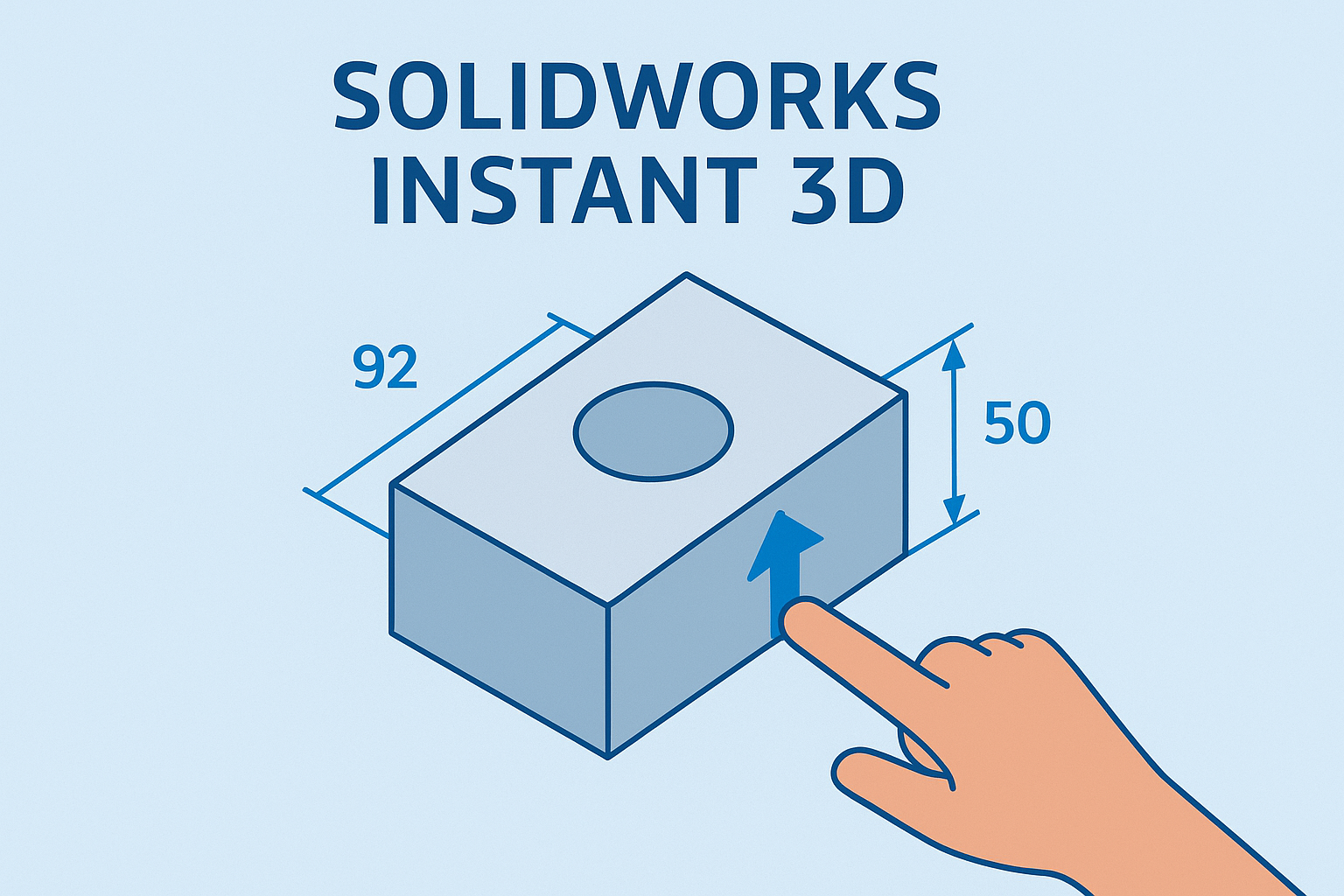
Modify dimensions, extrude features, and move geometry instantly using Instant 3D. Speed up your SOLIDWORKS design workflow.
SOLIDWORKS is a powerful software that provides a wide range of tools for designing and creating 3D models. However, some of these tools are often overlooked or underutilized by many users. In this blog, we will focus on one of these tools: Instant 3D. This powerful tool is built to streamline your design process and make it more efficient. Once you understand how to use it, you’ll find that it can be a valuable addition to your design toolkit. In other words, you are a step ahead in making your designs faster, and better!
The first function of SOLIDWORKS Instant 3D that we will discuss is how to modify previously created dimensions. The software allows you to change dimensions without having to open any sketches. There are two ways to accomplish this. The first is to left click anywhere on the part you want to adjust. This will display the measurements used to build the part, and you can then click on the dimension number, and a white box will appear. Input your desired measurement in the white box to change your dimension instantly.
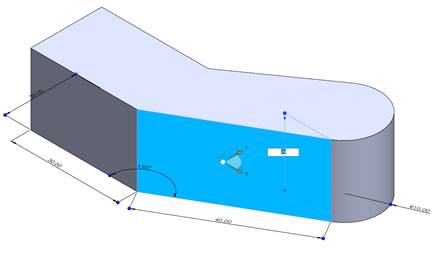
Instant 3D Dimension Input
The second method is to use the blue balloon at the end of the dimensioning lines and drag it to the desired measurement. While changing the dimensions, a ruler will appear, which can make it quite easy to snap to the correct scalar value.
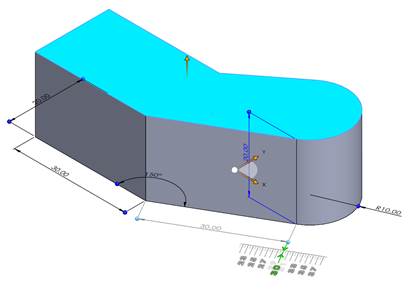
Dimension Drag and Ruler
Another great feature of Instant 3D is the ability to extrude a base or hole with just a few clicks. To do this, simply select any closed contour of the sketch, and an arrow will appear. Drag this arrow in different directions to extrude the base or cut a hole, and use the ruler to set the exact measurements. This feature can save you a lot of time, especially when working on complex designs.
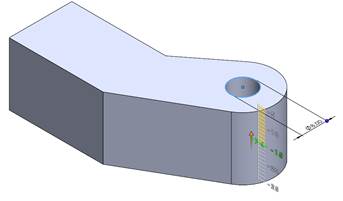
Base and Hole One-Click Extrusion
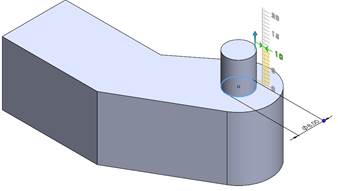 Base and Hole One-Click Extrusion 2
The software also allows you to move the geometries you have created, whether these are holes or extrusions, to a different spot by just dragging them. To achieve this, click on the geometry you would like to move. Once you do this, a triad will appear. Drag this triad to your preferred position, and the geometry will shift automatically. Additionally, if these geometries have been mirrored, the mirrored geometry will also be displaced. This functionality even extends to weldments, making it a versatile yet powerful tool.
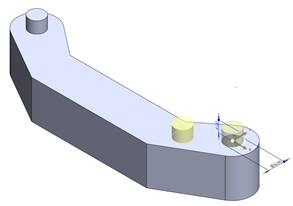
Displacing a Mirrored Extruded Base
In conclusion, SOLIDWORKS Instant 3D is a valuable tool that can greatly streamline your design process. By utilizing the tool’s dimension modification, extrusion, and geometry manipulation capabilities, you can save time and improve the efficiency of your work. Keep an eye out for future blogs to learn more about how to maximize the potential of SOLIDWORKS. It’s the simple things that make the biggest impact change!