Summary
Learn how to fully restore deleted PDM users with all permissions.
If you have ever needed to recover a user that has been prematurely deleted in previous versions of SOLIDWORKS PDM, you were pretty much out of luck and all you could do was to create a new user with an identical name. This recreated user wasn’t exactly the same as the deleted user, it had some limitations. In SOLIDWORKS PDM 2026, there is a new feature that will allow you to restore the deleted user, permissions and all.
For all who need a quick reminder on how to delete users please see the following steps.
- In the Administration tool
- Double-click the Vault where the user exists and login with Admin credentials.
- Expand “Users and Groups Management” and then expand the “Users” node.
- Right-click the User in question and then select “Delete”
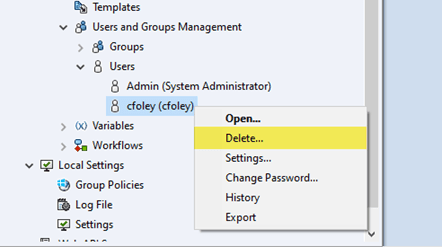 Administration tools “User”
In previous years’ versions of SOLIDWORKS PDM, if you wanted to “restore” this user you essentially had to recreate an identical user, but it wasn’t the same exact user and any references to this deleted user in that vault previously had this “Deleted” suffix. You couldn’t check-in files that were accidently left checked out when the user was originally deleted and you had to reset all of their permissions and groups.
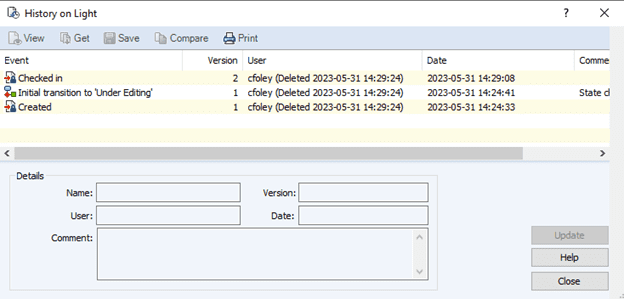
History of Light.SLDASM file after user has been deleted
Now in SOLIDWORKS PDM 2026, if you want to recover a user that has been deleted using the steps above, all you have to do is expand the “Users and Group Management” node, right click on “Users” and select “Deleted Users”.
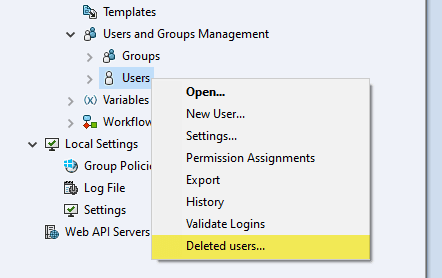
Right click on Users node in the Administration Tool.
From here, you can check the “Restore Login” box of the user you wish to restore and close this window. You will be prompted to save the changes and click “Yes” or the user will not be restored.
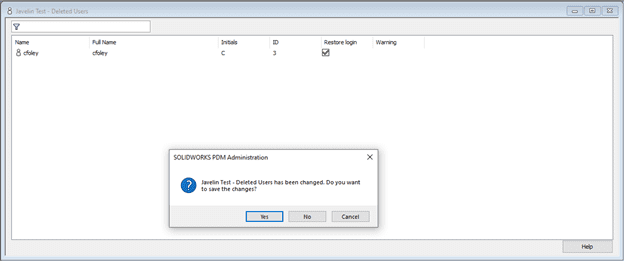
Prompted to save “Deleted User” changes
The user is now restored, you can now login to the vault with this user and all indications that this user was deleted have been restored to its original state.
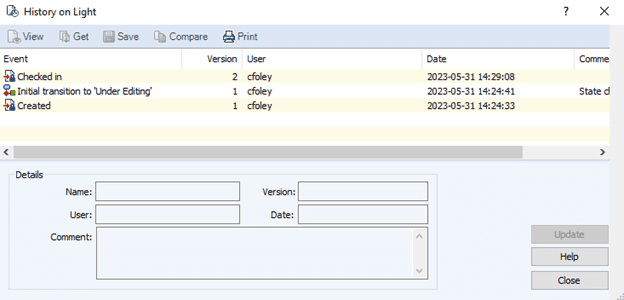
History of Light.SLDASM file after user has been restored
With this new feature, you can also take a look at past deleted users’ Properties (Information, Permissions) and their Settings by navigating back to the “Deleted Users” option and right clicking any user there and selecting these options.
If you're not familiar with how to update the PDM Archive Server password, then this article is just for you