Summary
Learn step-by-step how to update Admin and SQL credentials in SOLIDWORKS PDM Archive Server.
The SOLIDWORKS PDM Archive Server Configuration Tool lets you manage users, file vaults, and the archive server. You can also change the default Admin user password or Microsoft SQL (sa) credentials. Follow these steps on the server hosting the archive server service to update the credentials
Open PDM Archive Server Configuration
Navigate to Windows Start > SOLIDWORKS PDM, and launch Archive Server Configuration
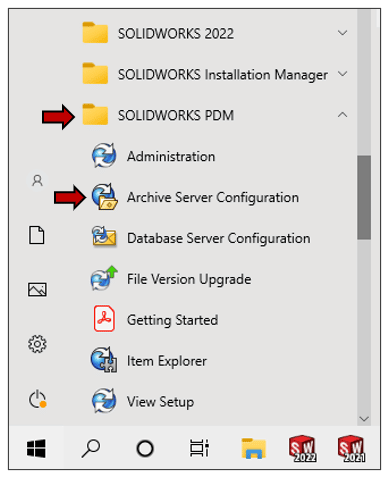 Open PDM Archive Server Configuration
Open PDM Archive Server Configuration (Alternate)
If the Archive Server configuration tool does not open when selected from the start menu, that is becuase it is already running. If you have already started and closed the PDM Archive Server Configuration Tool during the current Windows session, then you must launch it the subsequent time from the Windows task tray by clicking the SOLIDWORKS PDM Archive Server icon (lower right corner in Windows)
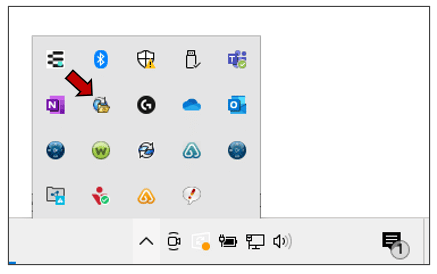 Open PDM Archive Server Configuration
Open Settings
In the SOLIDWORKS PDM Archive Server tool, click Tools > Default Settings…
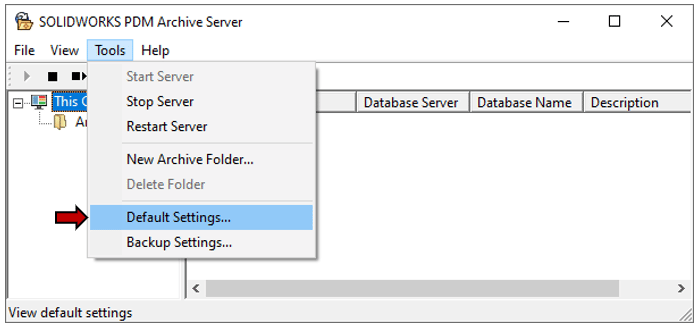 Default Settings
Login Page
In the Default Settings dialog, you can change the Admin user password by selecting Password, or change the SQL Login by selecting Change…
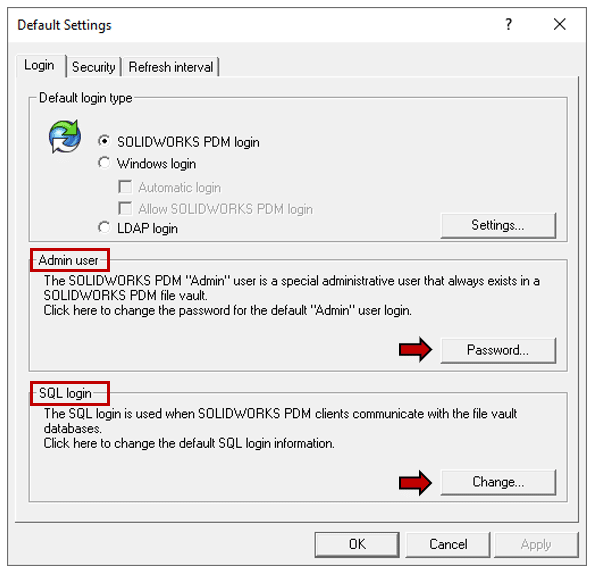 Default Settings Admin User
There are two logins to confirm. The SOLIDWORKS PDM "Admin" user is a special administrative user that always exists in a SOLIDWORKS PDM file vault.
The SQL Login is used when SOLIDWORKS PDM clients communicate with the file vault databases.
After entering the credentials, click OK to return to the Default Settings dialog and click OK again to return to the PDM Archive Server Configuration tool.
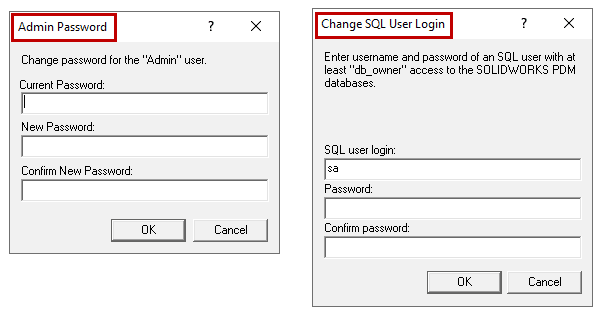 Update Passwords
Open Services
To take effect, the Archive Server Service must be restarted.
Close the tool and restart the SOLIDWORKS PDM Archive server in the Windows Services app. Navigate to Windows Start > Windows Administrative Tools, and then launch Services.
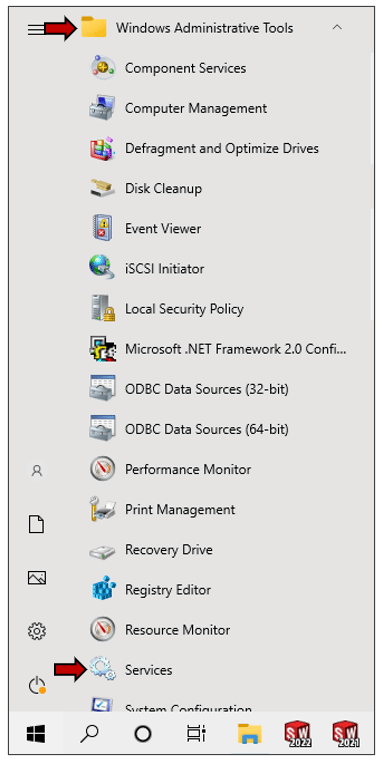 Open Services PDM
Restart the Service
In the Windows Services app, right-click SOLIDWORKS Archive Server and select Restart.
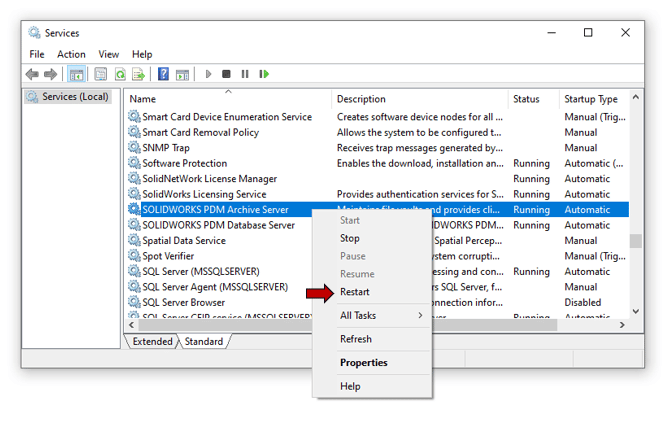 Restart the Service
If you don’t know how to change the SOLIDWORKS PDM client license type, then this article is just for you — don’t skip it!