Summary
Learn how SOLIDWORKS Electrical integrates with PDM 2025 to manage electrical project data efficiently.
SOLIDWORKS Electrical allows you to quickly create schematics, BOMs, wire run lists, and routed 3D assemblies to speed up the creation and validation of projects. Being able to generate all of that data so quickly, it becomes a critical initiative soon after implementation to find ways to organize and back up project progress and information.
Many users within the SOLIDWORKS ecosystem turn to integrating SOLIDWORKS Electrical with SOLIDWORKS PDM to accomplish this, and with the 2025 updates to SOLIDWORKS PDM, integrating electrical design data has become more streamlined, powerful, and accessible. In this blog I’ll walk you through the key benefits of this integration, how to connect your systems, and what TriMech offers to help you get the most out of this connection.
Key Benefits of Electrical and PDM Integration
Many electromechanical engineers reading this may already be using Electrical and PDM, but may not know how these systems can be integrated. The primary benefit given that set of circumstances is that you can consolidate all of your engineering data, not just the MCAD side, in a single system of record.
In doing so, you’re not just storing files that get backed up upon check-in, but you’re also enabling all of the other benefits of a data management system, like version control, approval workflows, and data cards for your electrical projects and pages to make searching through your project archives simpler than the out-of-the-box approach that Electrical provides.
The integration provides more than just this baseline functionality, however, with specialized features just for your electrical projects:
Enhanced EBOM (Electrical Bill of Materials) Management
SOLIDWORKS Electrical and PDM work together to create a virtual document that represents the BOM for your project, either by location, component type, or globally to the project. This shows up-to-date information about your SOLIDWORKS Electrical project without ever having to open up reports in the software.
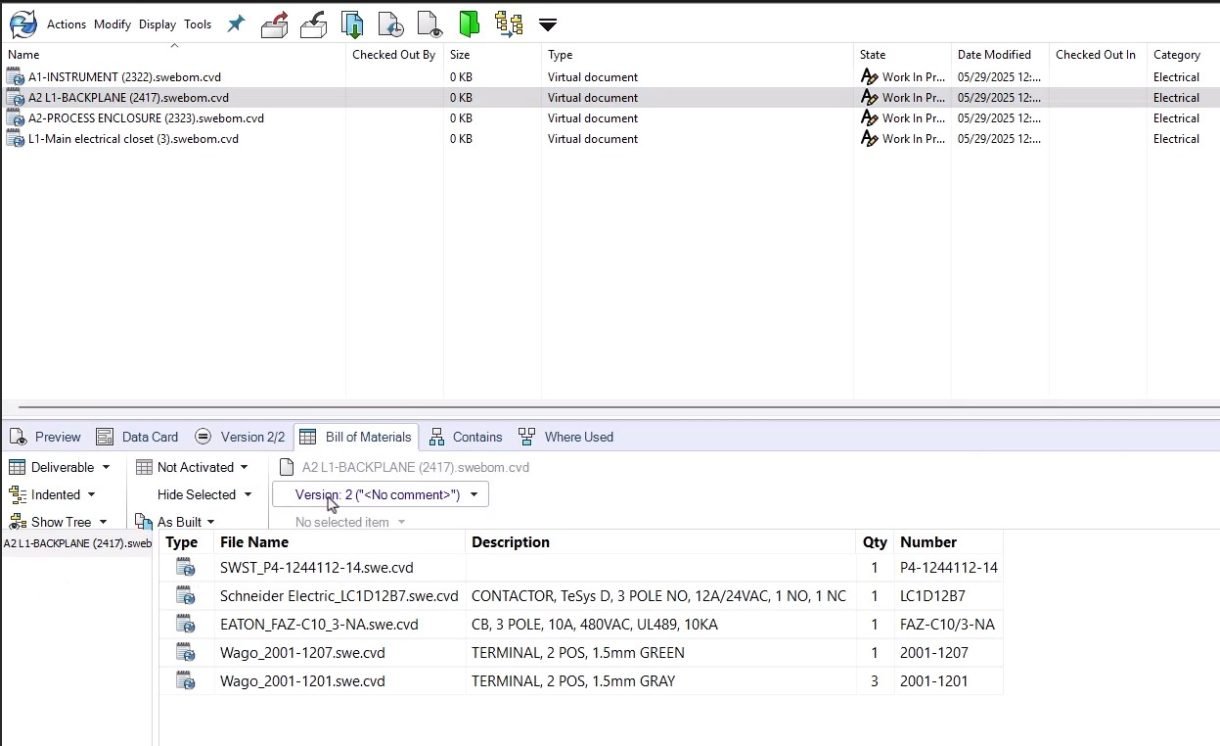
EBOM view in SOLIDWORKS PDM
Improved Viewing Capabilities
To view SOLIDWORKS Electrical projects in progress without a license requires the installation of the Electrical Viewer. This viewer is basically the same installation process as SOLIDWORKS Electrical in almost every way, except that the end result will not allow you to edit the files you open. If that sounds like a lot of upfront work just to be able to view a project, you’ll be glad to know that projects checked into PDM using the integration don’t require this.
Vault viewers and contributors only need SOLIDWORKS PDM access to see project pages as eDrawings files or PDFs that are created upon project check-in. If you’re using Web2 with PDM Professional, that won’t require any type of installation at all!
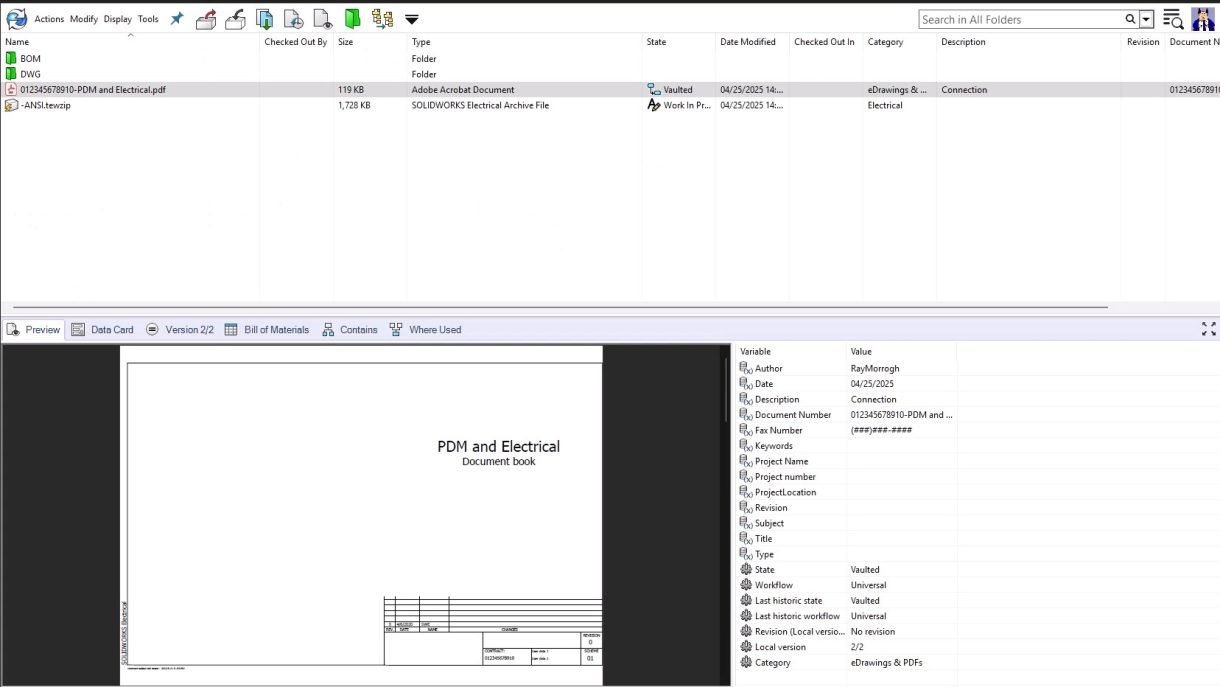
Viewing a SOLIDWORKS Electrical project in progress in PDM
Library Management
That BOM that was mentioned above was created with the help of electrical library management through PDM. Syncing your electrical parts library to PDM creates virtual documents of those components to populate those BOMs with accurate and up-to-date information like part numbers and descriptions.
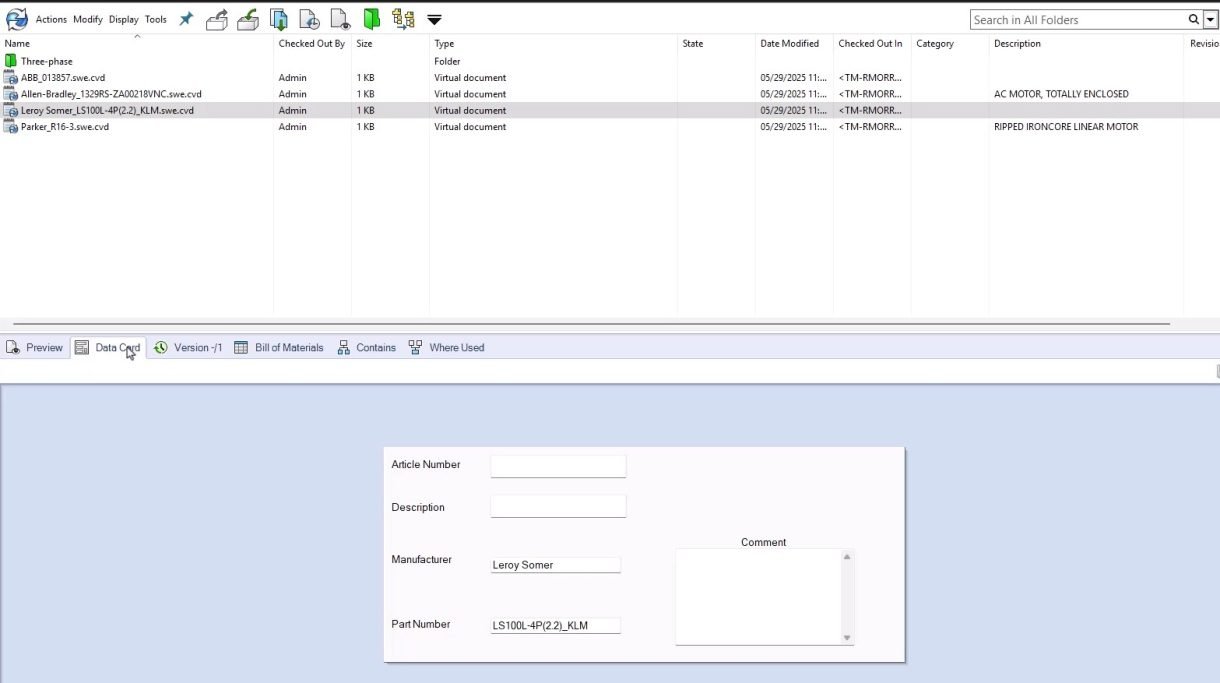
Electrical library parts are easily searched for and represented in BOMs
Variable Mapping
With two systems that were likely set up and configured differently, the field names for the same metadata are likely different between Electrical and PDM. That’s no problem for this integration, since your settings let you choose the equivalent variables on both sides and set the direction that you’d like them mapped.
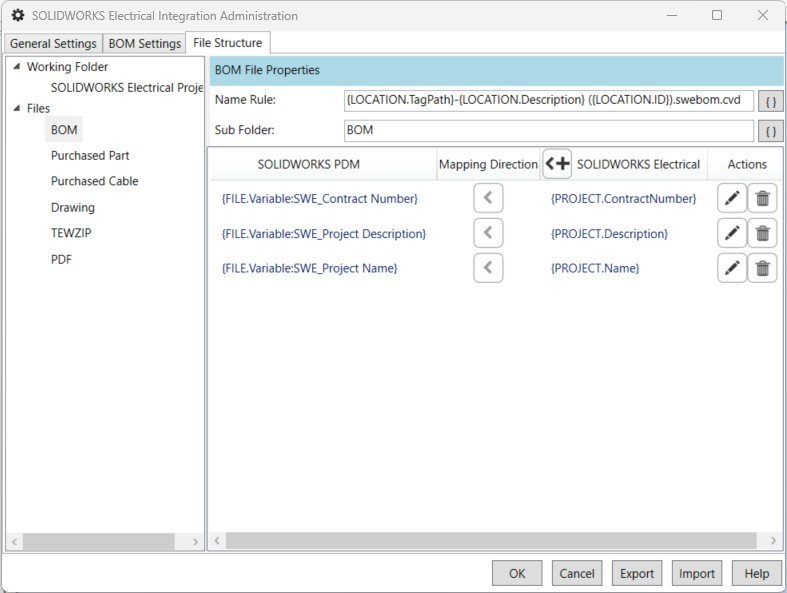
Variable mapping between Electrical and PDM
How to Connect SOLIDWORKS Electrical with SOLIDWORKS PDM
The prerequisite licensing to access all of these capabilities is to have SOLIDWORKS Electrical Schematic Professional and SOLIDWORKS PDM Professional. While not a requirement, one of the biggest advantages of using SOLIDWORKS 2025 is that the electrical connector is now built into PDM. Previously, it was installed separately, but now, setup and modification have become much simpler.
There are multiple tiers of connection between the two systems, and while this blog focuses on the PDM Add-In integration, here’s a quick breakdown of the connection levels that are configured from within SOLIDWORKS Electrical:
- Basic: Export your project to a folder. This is the default if you’re not using any advanced options.
- Advanced: This level has 3 underlying options
- Update Files for PDM backs up files to PDM, but doesn’t handle document control.
- Use Check In/Out moves project files automatically into PDM upon their completion.
- SOLIDWORKS PDM Add-In, or previously Third Party Add-In, is the most comprehensive and provides full control of the data beyond just backing it up to the vault

Configuring the connection between SOLIDWORKS PDM and Electrical
This is where you’ll select the vault you’re connecting to and what information is transferred from your Electrical installation to that vault. That’s all that needs to be configured on the SOLIDWORKS Electrical side of things.
In SOLIDWORKS PDM, you’ll configure your settings for libraries to synchronize, how you’d like the BOMs to be grouped, and the variable mapping between Electrical and PDM. From here, the systems are connected, and you can begin more of the PDM administration work that is required to handle all of the electrical project data.
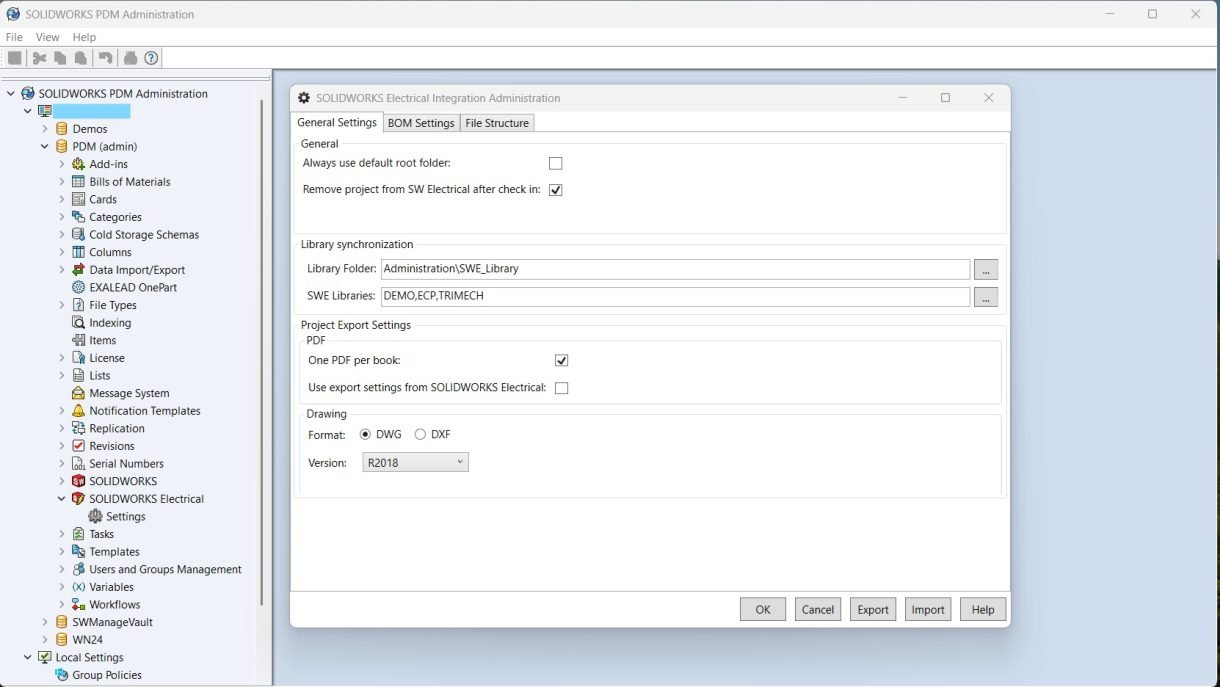
Using the SOLIDWORKS PDM Administration tool to configure more mapping rules
If you’re curious about Profile Positioning in SOLIDWORKS Weldments, you can read this article