Summary
Learn the most common SOLIDWORKS PDM license problems and how to resolve them effectively.
SOLIDWORKS PDM uses floating licenses that operate the same as traditional SOLIDWORKS network licenses. However, there are a few differences between them, resulting in different steps for fixing them compared to regular network licenses.
Troubleshooting SOLIDWORKS PDM license issues needs to look further than just network connection errors or unopened ports. There are a few common reasons that your SOLIDWORKS PDM licenses are not working the way they should.
Using the Wrong License Server
You might see the error message “Failed to obtain license for…”
In this case, SOLIDWORKS PDM is simply not looking at the correct license server to pull a license. For SOLIDWORKS CAD, you’d simply change the server in the SolidNetwork License Manager client. However, in SOLIDWORKS PDM, you’ll open the Administration tool.
To fix this:
Open the SOLIDWORKS PDM Administration Tool.
Log in to the affected vault and expand the License section
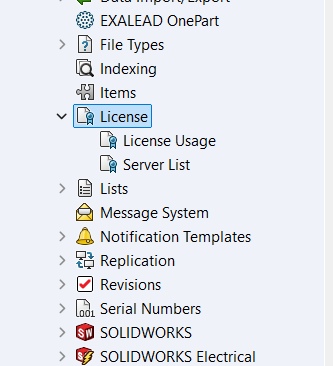 License options in the SOLIDWORKS PDM Administration Tool
Double-click on Server List.
Make sure that the current license server is shown in the box. If not, add it now with either the server name or the IP address and the open port
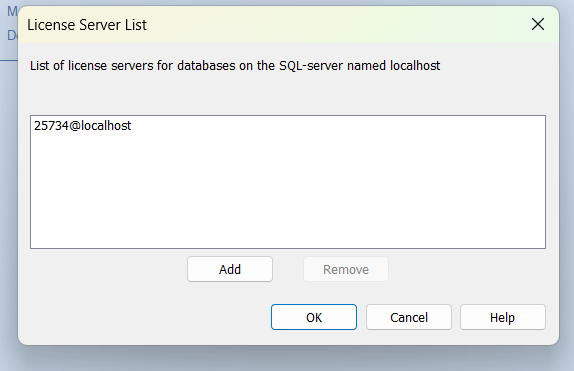 Adding a new license server to SOLIDWORKS PDM
Using the Wrong License Type
You might see the error message “The operation is not supported by your SOLIDWORKS PDM license.”
In this case, the license the SOLIDWORKS PDM user is pulling from the server isn’t suitable for the actions they are trying. For example, they could be using a View license and trying to check a file out of the vault.
To fix this:
Open the SOLIDWORKS PDM Administration Tool.
Click the question mark icon or go to Help->About SOLIDWORKS PDM Administration.
In the dropdown next to Client Type, select the license type you want to use.
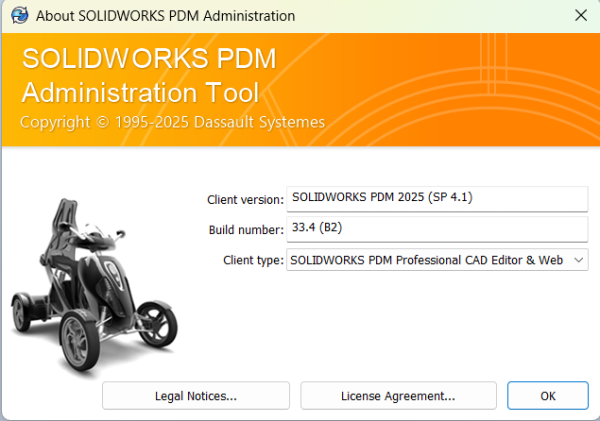 Changing the SOLIDWORKS PDM license type
What SOLIDWORKS PDM License Do I Need?
Depending on your role, you may need one SOLIDWORKS PDM license or another. Below, you can find information on the license types for both SOLIDWORKS PDM Standard and Professional.
License Usage for SOLIDWORKS PDM Professional
| License | License Types Included |
|---|---|
| SOLIDWORKS PDM Professional CAD Editor & Web | Editor: Supports working with all file types, including enhanced management and previewing of CAD formats such as SOLIDWORKS. CAD add-ins allow users to access SOLIDWORKS PDM Professional functionality from within the CAD application.
Web: Remote users can use the WEB client to search the vault and perform basic functions to enable remote work processes. |
| SOLIDWORKS PDM Professional Contributor & Web | Contributor: Users on a local area network (LAN), wide area network (WAN or virtual private network (VPN) can perform the same functions as with the Editor license type, except that CAD add-ins are not enabled.
Web: Remote users can use the WEB client to search the vault and perform basic functions to enable remote work processes. |
| SOLIDWORKS PDM Professional Viewer | Allows read-only access to vaults. Users cannot add or modify (check out, check in, update values) files or use CAD add-ins. |
License Usage for SOLIDWORKS PDM Standard
| License | License Types Included |
|---|---|
| SOLIDWORKS PDM Standard CAD Editor | Supports working with SOLIDWORKS, DWG/DXF format, Microsoft Word, and Microsoft Excel files. All file formats that the Office plug-in handles behave in the same way in SOLIDWORKS PDM Standard, except Preview. |
| SOLIDWORKS PDM Standard Contributor | Supports working with SOLIDWORKS, DWG/DXF format, Microsoft Word, and Microsoft Excel files. |
| SOLIDWORKS PDM Standard Viewer | Allows read-only access to file vaults; the user cannot add or modify (check out, check in, update values) files. |
Using the Wrong SOLIDWORKS PDM Client Type
You might run into a mismatch between versions of SOLIDWORKS PDM.
If you’re trying to access a SOLIDWORKS PDM Professional Vault, but you’re using a SOLIDWORKS PDM Standard client, it won’t be able to pull a license. This is due to the two softwares using different licenses, similar to trying to use a SOLIDWORKS Simulation license for SOLIDWORKS Composer.
To fix this:
Open the Windows Control Panel.
Navigate to Add or Remove Programs.
Modify the SOLIDWORKS PDM installation.
Change the PDM Product to the version you have installed on the server.
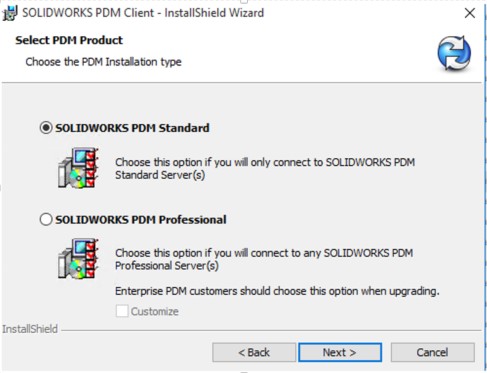 Modifying the SOLIDWORKS PDM client installation
License Expiration Notice
You may see an error that your “licenses will expire in…”
This is typically not caused by the licenses expiring, but rather that the entitlement dates have not been refreshed on the license server. Reactivating the SOLIDWORKS PDM licenses updates the expiration information with the SOLIDWORKS servers and relays that message down to your machine. This ensures your subscription benefits stay active on the machine.
You can take a look at the article I wrote on integrating SOLIDWORKS Electrical with PDM 2025