Summary
Learn how SOLIDWORKS PDM Copy Tree simplifies copying files while preserving references and versions.
The Copy Tree tool within SOLIDWORKS PDM is designed to help engineering teams manage their design data efficiently. Copy Tree offers similar functionality to SOLIDWORKS’ standalone Pack & Go tool, but with enhanced capabilities tailored specifically for use within SOLIDWORKS PDM.
This feature is particularly useful for users who need to replicate file structures, rename components, and manage data versions. The biggest benefit of using Copy Tree is that it maintains the integrity and traceability of the vaulted files.
How to Use SOLIDWORKS PDM Copy Tree
Copy Tree is accessible from the Tools pull-down menu within the local vault view of SOLIDWORKS PDM. This integration ensures that users can initiate the copy process directly from their working environment without needing to leave the PDM interface. This seamless access is one of the key advantages over Pack & Go, which operates outside of the PDM ecosystem.
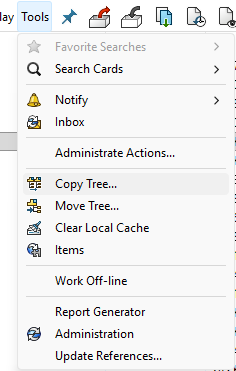
Accessing SOLIDWORKS PDM Copy Tree
Copy Tree will then display a list of the selected components and their references. You can quickly filter the list to more easily select what you want to copy. When choosing the destination for the files, the path and target file names for individuals can be controlled.
What is Copy Tree Used For?
At its core, Copy Tree allows SOLIDWORKS PDM users to copy a file and all other referenced files to another location. The location can reside inside the file vault to reuse existing projects or outside of the vault if taking files external for working with contractors.
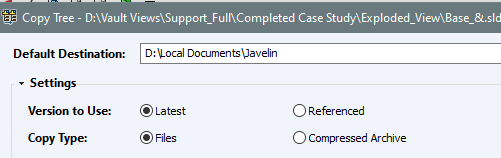
Copy Tree file settings
The file structure can be left untouched or converted into a ZIP file to reduce file size. When selecting the files to copy, the tool has options to specify which version you want to bring along, either the latest or the referenced version. This version control capability is crucial in collaborative environments where multiple revisions of a file may exist, and selecting the right one can prevent costly errors.
What Other Options are Included?
Copy Tree provides a range of settings that enhance its utility beyond simple file duplication. Depending on the combination selected, Copy Tree proves to be a robust tool for copying files. Whether you’re planning to spin off a new project or package data for external contractors, SOLIDWORKS PDM Copy Tree has you covered.
- Include related items: Users can choose to include simulation results, associated drawings, and other dependencies. This ensures that all relevant data is carried over in the copy process.
- Maintain relative paths: The original folder structure can be preserved, which is helpful when replicating complex assemblies.
- Regenerate serial numbers: If serial numbers are used in data cards, Copy Tree can automatically assign new ones. This requires a serial number scheme to be defined in PDM Administration and is available only in SOLIDWORKS PDM Professional.
 available options for including references
- Add Prefix or Suffix: Systematically append text to the file names to denote changes.
- Replace text: Bulk change text to remove company IP or other identifiers.
- Rename with serial number: Obfuscate common file names with their SOLIDWORKS PDM Serial Numbers. This can help aid in manufacturing or purchasing by removing the ambiguity of files.
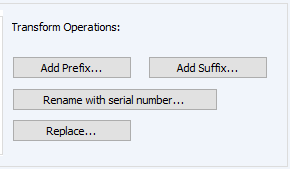 File name Transform Operations
This level of customization ensures that users can tailor the copy operation to their exact needs, whether they’re duplicating an entire assembly or just a few key components.
Warnings and Validation
During the copy process, Copy Tree provides warnings for potential issues, such as missing references or naming conflicts. Users can navigate through these warnings using the arrow keys, allowing them to address problems before finalizing the copy. This proactive approach helps maintain data integrity and prevents errors that could disrupt downstream workflows.
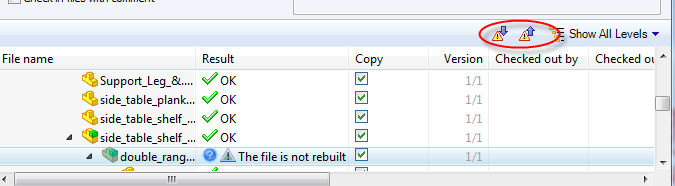 SOLIDWORKS PDM Copy Tree errors and warnings
Project Repeatability with SOLIDWORKS PDM
Many clients will use the Copy Tree command to create a standardized, clean starting point for a project. This is particularly apparent when working on similar projects that start from the base design.
This works on a small scale but can be troublesome with many people interacting with data. SOLIDWORKS PDM has a system for creating templates for simple files, such as project checklists, or larger sets, such as entire project structures. These templates include predefined variables, folder structures, and starting files. They can provide an excellent starting point for projects to ensure repeatability at scale.
You can also read my article on Troubleshooting SOLIDWORKS PDM License Issues.
The Copy Tree tool within SOLIDWORKS PDM is designed to help engineering teams manage their design data efficiently. Copy Tree offers similar functionality to SOLIDWORKS’ standalone Pack & Go tool, but with enhanced capabilities tailored specifically for use within SOLIDWORKS PDM.
This feature is particularly useful for users who need to replicate file structures, rename components, and manage data versions. The biggest benefit of using Copy Tree is that it maintains the integrity and traceability of the vaulted files.
How to Use SOLIDWORKS PDM Copy Tree
Copy Tree is accessible from the Tools pull-down menu within the local vault view of SOLIDWORKS PDM. This integration ensures that users can initiate the copy process directly from their working environment without needing to leave the PDM interface. This seamless access is one of the key advantages over Pack & Go, which operates outside of the PDM ecosystem.
Accessing SOLIDWORKS PDM Copy Tree
Copy Tree will then display a list of the selected components and their references. You can quickly filter the list to more easily select what you want to copy. When choosing the destination for the files, the path and target file names for individuals can be controlled.
What is Copy Tree Used For?
At its core, Copy Tree allows SOLIDWORKS PDM users to copy a file and all other referenced files to another location. The location can reside inside the file vault to reuse existing projects or outside of the vault if taking files external for working with contractors.
Copy Tree file settings
The file structure can be left untouched or converted into a ZIP file to reduce file size. When selecting the files to copy, the tool has options to specify which version you want to bring along, either the latest or the referenced version. This version control capability is crucial in collaborative environments where multiple revisions of a file may exist, and selecting the right one can prevent costly errors.
What Other Options are Included?
Copy Tree provides a range of settings that enhance its utility beyond simple file duplication. Depending on the combination selected, Copy Tree proves to be a robust tool for copying files. Whether you’re planning to spin off a new project or package data for external contractors, SOLIDWORKS PDM Copy Tree has you covered.
- Include related items: Users can choose to include simulation results, associated drawings, and other dependencies. This ensures that all relevant data is carried over in the copy process.
- Maintain relative paths: The original folder structure can be preserved, which is helpful when replicating complex assemblies.
- Regenerate serial numbers: If serial numbers are used in data cards, Copy Tree can automatically assign new ones. This requires a serial number scheme to be defined in PDM Administration and is available only in SOLIDWORKS PDM Professional.
available options for including references
- Add Prefix or Suffix: Systematically append text to the file names to denote changes.
- Replace text: Bulk change text to remove company IP or other identifiers.
- Rename with serial number: Obfuscate common file names with their SOLIDWORKS PDM Serial Numbers. This can help aid in manufacturing or purchasing by removing the ambiguity of files.
File name Transform Operations
This level of customization ensures that users can tailor the copy operation to their exact needs, whether they’re duplicating an entire assembly or just a few key components.
Warnings and Validation
During the copy process, Copy Tree provides warnings for potential issues, such as missing references or naming conflicts. Users can navigate through these warnings using the arrow keys, allowing them to address problems before finalizing the copy. This proactive approach helps maintain data integrity and prevents errors that could disrupt downstream workflows.
SOLIDWORKS PDM Copy Tree errors and warnings
Project Repeatability with SOLIDWORKS PDM
Many clients will use the Copy Tree command to create a standardized, clean starting point for a project. This is particularly apparent when working on similar projects that start from the base design.
This works on a small scale but can be troublesome with many people interacting with data. SOLIDWORKS PDM has a system for creating templates for simple files, such as project checklists, or larger sets, such as entire project structures. These templates include predefined variables, folder structures, and starting files. They can provide an excellent starting point for projects to ensure repeatability at scale.
You can also read my article on Troubleshooting SOLIDWORKS PDM License Issues.